
AWS hosted event
- Open the Workshop Studio event dashboard .
- Choose your preferred sign-in method. For AWS guided events, choose AWS Builder ID. You will be redirected to Create AWS Builder ID page.
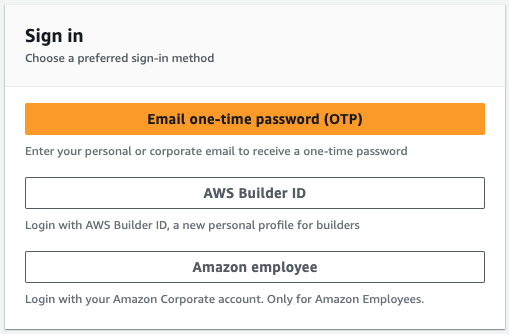
- Sign in using a AWS Builder ID.
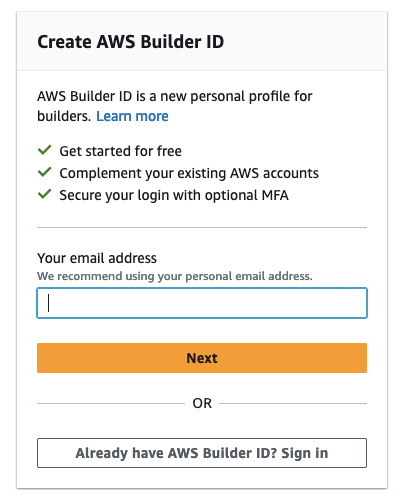
- If you don't have an AWS Builder ID, enter your email address and choose Next. Follow the instructions to create a Builder ID.
- If you have a Builder ID, choose Already have AWS Builder ID? Sign in to sign in with your existing ID.
- Enter the event access code shared by the organizer and choose Next.
- Read and agree to the Terms and Conditions by selecting I agree with the terms and conditions.
- Choose Join Event.
As part of the pre-configured development environment, we have deployed code-editor , hosted on an Amazon EC2 instance.
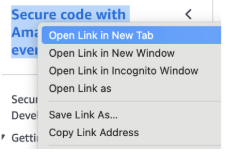
- Open the landing page of the workshop in a new tab by using the context menu, Open Link in New Tab when selecting the title at the top of the navigation bar.
- On the landing page, navigate to the Event Outputs pane at the bottom of the page.

- Select the URL. Code-editor will open in a new browser tab.
The following has been pre-configured in your code-editor IDE:
A number of programming languages are pre-installed on the IDE.
You have successfully accessed your code-editor IDE, which has been pre-configured for the workshop.
Next, you will connect to Kiro. Proceed to Connect to Kiro.